Product
Product release: From visibility to control, phase 2 of dedicated IP management is here.
If you manage dedicated IPs in Mailgun, you want a quick read on where your warmup stands, which domains are assigned where, and whether any IPs are floating unlinked. And you’ve been clicking through three different pages to get it. That ends now.
We’ve redesigned the dedicated IPs page from the ground up. Nothing about your IPs, domains, or sending configuration has changed. This is purely a visibility upgrade, and it’s a big one.
What changed on the Mailgun IP page and why it matters
The old dedicated IPs page told you what you had with a limited view. The new one will give you a fuller picture, saving you time and showing you everything in one place.
Before the redesign, the page showed two things: your assigned domain and your total IP count. Checking warmup status meant clicking into each IP individually. Sub-account assignments and pool linkage required navigating to separate pages entirely. These new improvements are designed to help senders running a larger infrastructure with multiple domains, sub-accounts, and pools across dozens of IPs. And they are beginning to role out mid-June.
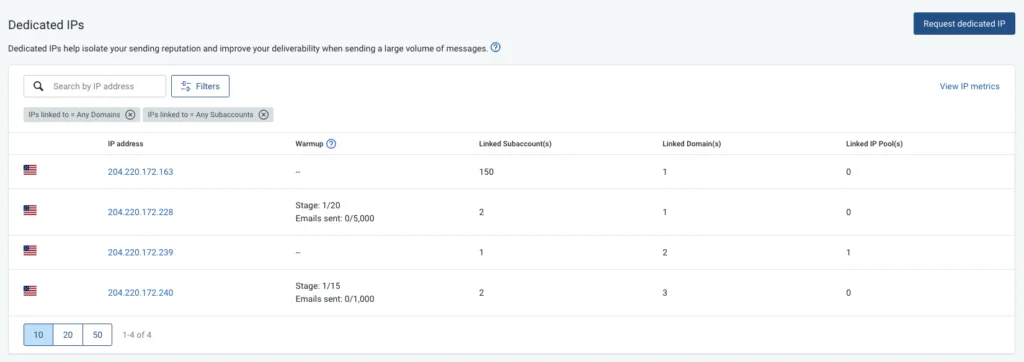
The new page will consolidate all your IP data together into a single, filterable view. You can see the full state of your IP setup at a glance, slice it by assignment status, and jump directly to deliverability data.
Pro tip: If you’re earlier in the process of building out your dedicated IP setup, Mailgun’s IP warmup automation handles the ramp-up process automatically so you’re not managing send volumes by hand. Read more →
What’s new on the page?
The redesigned page surfaces information that used to require extra clicks:
Warmup status, inline
Each IP now shows its current warmup status directly in the list: Complete, In progress (with current stage and emails sent), or Not started. You no longer need to open each IP individually to check where it stands in the process.
Linked sub-account visibility
If your account has sub-accounts, a new column shows how many sub-accounts each IP is linked to. Click any IP to see the full list, including when each sub-account was linked.
Linked domains and IP pools
The main list now shows how many domains and IP pools each IP is assigned to, so you can audit your full sending structure without leaving the page.
A Note on link date history
The IP detail page now logs when each domain, sub-account, or pool was linked to an IP. Sinch started capturing this data on April 23, 2026. Any links made before that date will show a dash in the link date column. All new links from that date forward have full history.
From a UI and usability perspective, the new interface looks clean and intuitive—nice improvement there!”
How do the filters work?
Filters are the fastest way to find IPs that need attention.
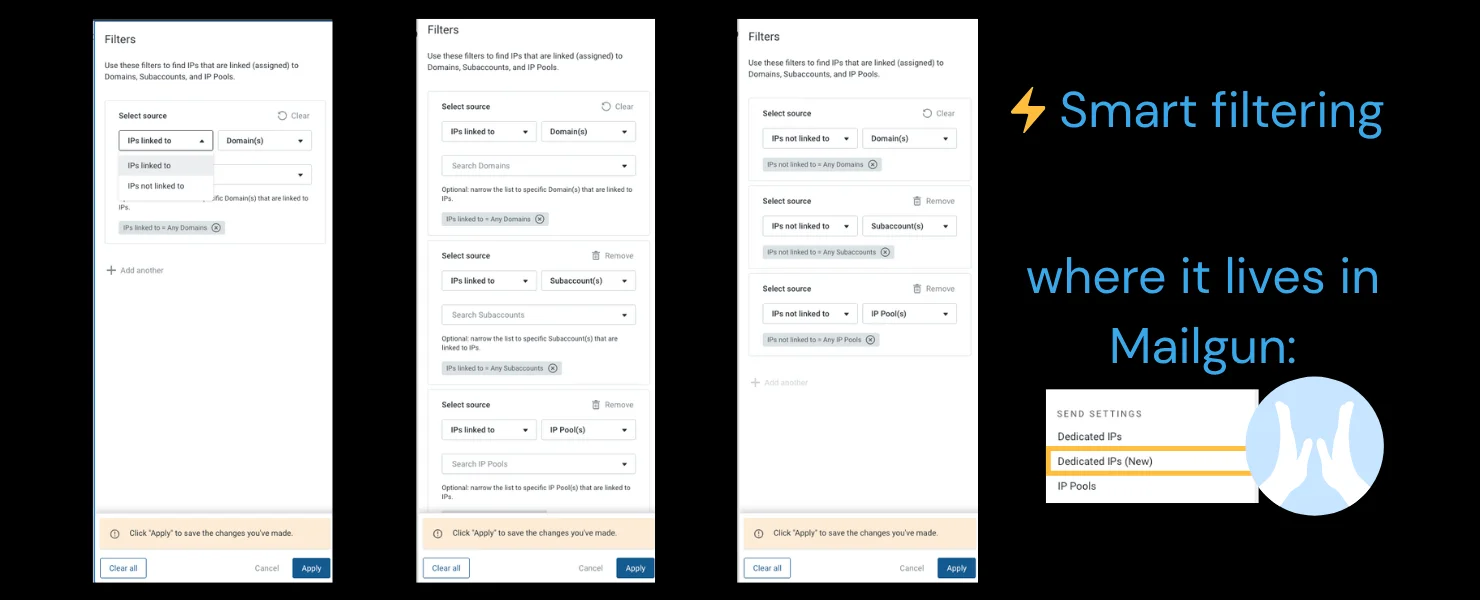
The Filters panel lets you slice your IP list by assignment status. You can filter by IPs linked — or not linked — to:
- Domains
- Sub-accounts
- IP pools
And you can stack multiple filters to go further. To find every unassigned IP in your account, select all three “not linked” options together. The filtered set updates instantly, and active filters appear as chips above the list so you always know what you’re looking at.
Pro tip: If you manage email streams for multiple clients or business units, Mailgun’s IP Pools feature lets you group dedicated IPs by send stream, useful for keeping marketing and transactional traffic separated at the IP level. Learn how IP Pools work →
Getting to IP metrics without rebuilding filters
One of the more practically useful additions is the View IP metrics link.
Clicking it (in the top right of the page) takes you to the metrics dashboard pre-filtered to the IP or set of IPs you’re currently viewing. That means sent count, delivered rate, bounce classification, and the rest of your deliverability data are already in context when you land there.
If you’ve filtered the main list down to a specific subset of IPs, the metrics view respects that filter. You’re not starting from scratch every time you want to cross-reference warmup progress against actual sending performance.
What’s new in phase 2
Centralized assignment, and why it matters
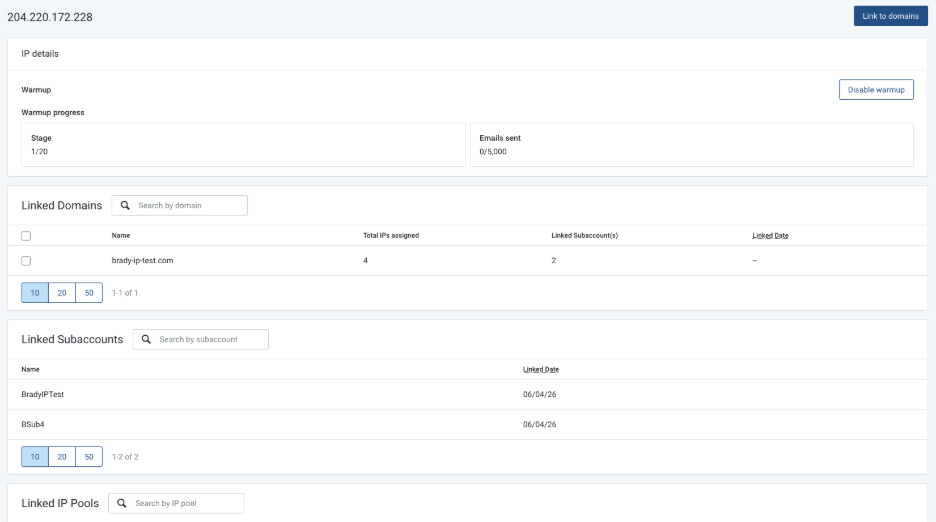
Assigning an IP to a domain, pool, or subaccount now happens right from the IP detail page. You no longer need to navigate separate pages or log into each subaccount individually to make the change.
IP assignment to domains, pools, and subaccounts from one page
That same page handles pool assignment too. Domains and subaccounts can now carry more than one non-dynamic IP pool.
Moving IPs between parent and subaccounts
Admins can reassign an IP from the primary account to a subaccount, or pull it back, all from the central view without separate logins.
Warmup timestamp improvements
The IP detail page now shows when the current warmup stage started and when the next one begins.
Wrapping up
The full picture of your IP list is now available. Head to the dedicated IPs page in your account and you’ll see the redesign. If you manage sub-accounts, check the Linked Sub-account(s) column first, it’s the most visible change for accounts with complex setups. Use the Filters button to surface any IPs that aren’t yet linked to a domain or pool.
Questions about your IP setup? Reach out to your dedicated TAM or get in touch with Mailgun support.
Need help getting started, read our getting started guide.
No. Your IPs, domains, sending configuration, and API setup are completely unchanged. The new page only changes how you view and manage your IP assignments.
Sinch started capturing link date data on April 23, 2026. Any IP linked before that date won’t have a recorded link date. All new links show full date history.
Go to your dedicated IPs page and check the Linked Sub-account(s) column. You can use the filter to show only IPs linked (or not linked) to sub-accounts, and click into any IP to see the full sub-account list and link dates.
If your account has sub-accounts, you may notice a higher IP count on the new page than you saw on the old one. That’s expected — the new page now pulls in IPs from all sub-accounts within your account family, giving you a complete view of your full infrastructure. The IPs themselves haven’t changed; you’re just seeing more of them in one place now.