Image Validation

Stop broken images from reaching subscribers 

A broken image URL, missing alt text, or oversized file won’t announce itself during build. It shows up after you hit send in a broken layout, a slow load, or an accessibility complaint. Mailgun Inspect catches those issues before they reach a single subscriber. 
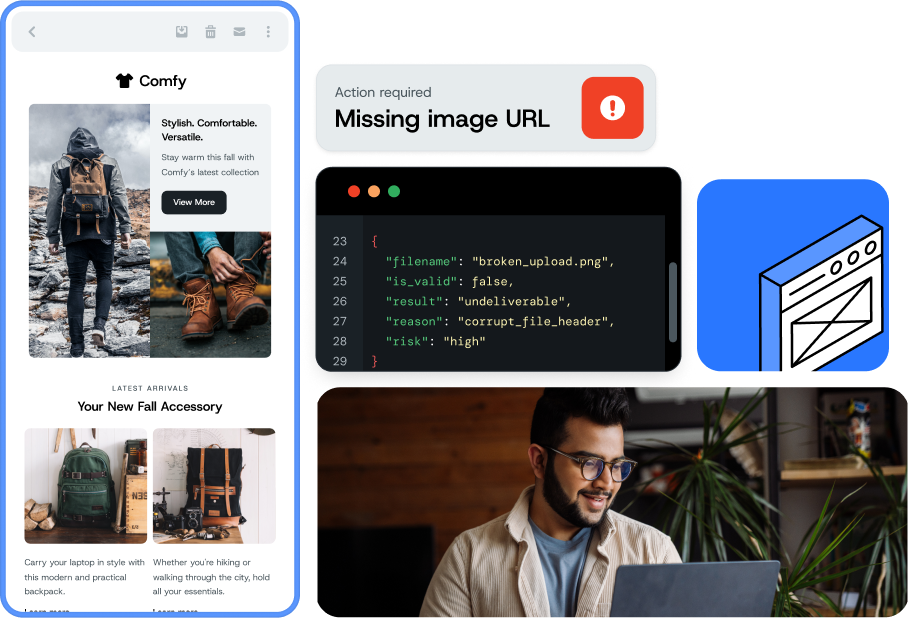
Image for Stop broken images from reaching subscribers 
Join over 150,000 businesses, including 8 of the 10 largest tech companies in the world

Pre-send image checks

Prevent post-send problems

Broken images don’t just look bad. They signal to subscribers that something went wrong. Missing alt text shuts out screen reader users. Oversized files slow load times across every device. Image validation adds automated checks to your pre-send QA so you fix issues before they reach inboxes. 

  • Detect image hosting issues that may impact rendering 
  • Flag broken image URLs before they affect the email experience 

  • Catch missing alt text before accessibility gaps reach subscribers 

  • Identify oversized images that slow email loading 

  • Review total email weight and load time and automatically compress images to improve performance 

  • Spot missing width and height attributes before layout shifts happen 

Image for Prevent post-send problems

Better Email QA

Run a full image audit in seconds

Mailgun Inspect parses your full email HTML, finds every image tag, and runs three checks per image: URL validation, alt text presence, and file size measurement. 

Results come back as a JSON report with per-image details including url, alt_text_present, file_size_kb, and is_broken, plus total email weight and load time. 

Image for Run a full image audit in seconds

Flag and fix issues

Image validation built into your QA workflows

Submit your email for review by pasting HTML, providing a hosted URL, or sending to a Mailgun-generated address. Filter results by severity or issue type. Export as a PDF or pull the API response into your own tooling.

  • Run image validation through the Inspect UI or via API

  • Filter issues by severity or issue type to focus review on what matters

  • Export results as a PDF or use the API response in your own reporting workflow 

Image for Image validation built into your QA workflows

Get Started

Start image validation in three steps

1. Run your test

Run tests using Mailgun Inspect three ways by sending from your ESP, pasting your HTML directly, or uploading from a URL. Or you can use the API to run an image validation check to retrieve results via a JSON response.

2. Review your email

Mailgun Inspect runs automated checks for common issues – including image validation. Flagged issues can be found in the dashboard.

3. Resolve issues

Once you’ve identified the issues, you can easily resolve them before you hit send.  

FAQs

Common questions about image validation

Email image validation checks every image referenced in an email before it’s sent. It confirms URLs resolve, file sizes are reasonable, and alt text is present. Mailgun Inspect runs these checks directly from your email HTML.

POST your email HTML to /v1/inspect/validate/images and receive a test_id. Then GET /v1/inspect/validate/images/{test_id} to retrieve JSON results for each image found. Learn more about Image Validation API in our documentation. 

Inspect checks three things per image: whether the URL is broken, whether alt text is present, and the file size in KB. It also reports total email weight and load time. 

Inspect reports file_size_kb for each image so you can identify files that may slow loading. It can also automatically compress images where possible to improve performance.

With Mailgun, the maximum size for a single email message including content, headers, and attachments is 25 MB. However, many inbox providers have their own incoming message size limits. Email experts recommend keeping the entire HTML email under 100-500 KB.   

Yes. Inspect offers both a UI and a full API with identical feature coverage. Results can also be exported as a PDF for sharing outside the platform. 

Dimension optimization means setting explicit width and height attributes on image elements in HTML. It prevents layout shifts during loading by letting the email client allocate space before the image renders. 

Inspect consolidates image validation, link validation, and accessibility review into one pre-send workflow. Streamlined QA with Inspect can save up to 45+ minutes per email across review, revision, and approval cycles.